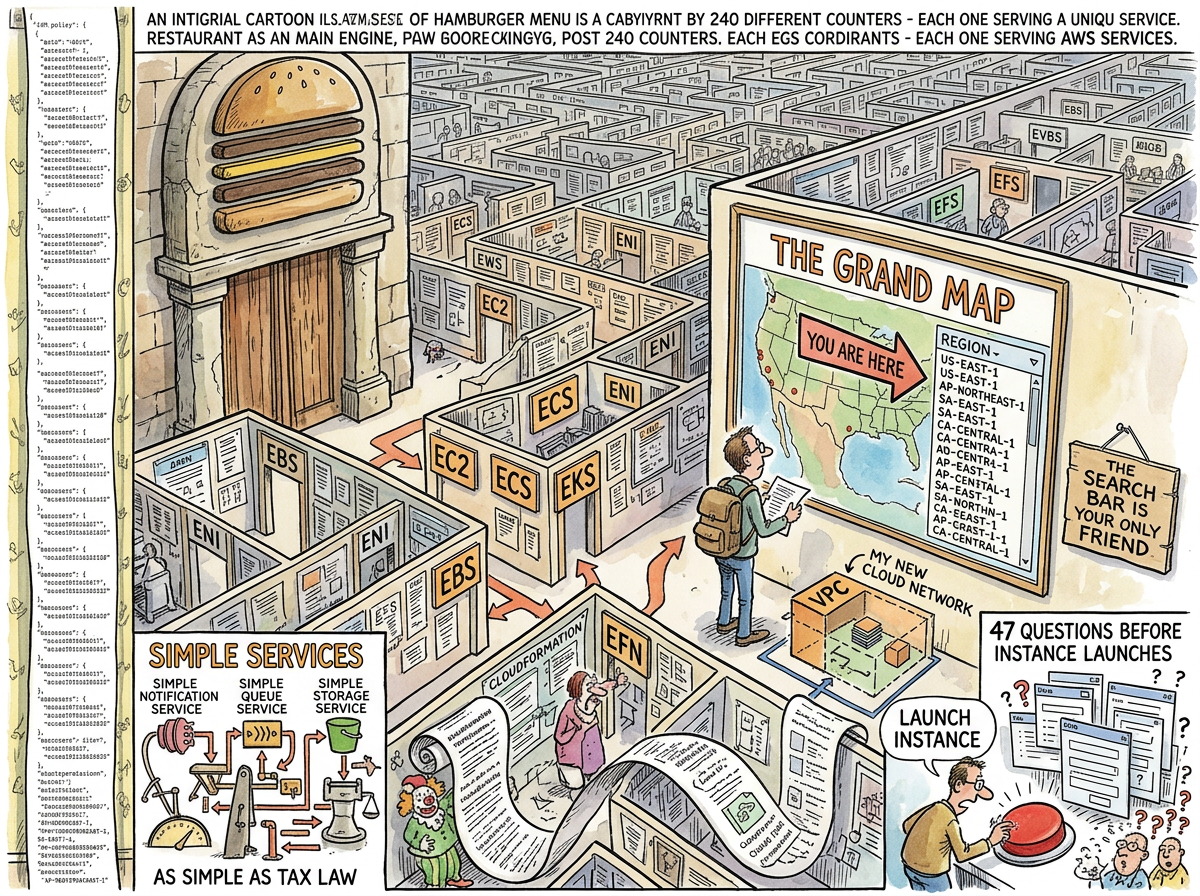
AWS Console (console.aws.amazon.com) is the web-based management interface for AWS, in which 240 services are organised into a navigation structure that makes the Library of Alexandria look like a pamphlet rack — and which, like the Library of Alexandria, is most efficiently navigated by already knowing where everything is before you enter.
The AWS Console is not badly designed. The AWS Console is designed for a problem that has no good solution: presenting 240 services, each with dozens of sub-features, each with region-specific state, each with its own IAM permissions, in a single web application that must be usable by both the developer who uses three services and the enterprise architect who uses thirty. The result is an interface that serves everyone adequately and no one well — the architectural equivalent of a restaurant with 240 counters and no waiter.
The search bar is the only viable navigation strategy. Developers who use the sidebar menu are either new or lying.
The Hamburger Menu of Everything
The AWS Console’s primary navigation is a sidebar that lists every service, grouped into categories that were decided by an information architect who has since left the company, or possibly the industry. The categories include:
- Compute — EC2, Lambda, ECS, EKS, Fargate, Lightsail, Batch, App Runner, Elastic Beanstalk (nine ways to run code)
- Storage — S3, EBS, EFS, FSx, Storage Gateway, Backup, Snow Family (because sometimes you mail a hard drive)
- Database — RDS, DynamoDB, ElastiCache, Neptune, DocumentDB, Keyspaces, Timestream, QLDB, MemoryDB (nine databases, each for a use case that PostgreSQL also covers)
- Networking — VPC, CloudFront, Route 53, API Gateway, Direct Connect, Transit Gateway, PrivateLink, Global Accelerator, App Mesh
The list continues for approximately forty more categories. Nobody has scrolled to the bottom. The bottom is theoretical.
Each service, when selected, opens its own console — a console within the console — with its own navigation, its own layout, its own design language, and its own vintage. The EC2 console looks like 2015. The Lambda console looks like 2020. The newer services look like 2024. Navigating between them is time travel through AWS’s design history, each era preserved in amber, none updated to match the others.
The Region Trap
Every AWS Console session begins with the same ritual: checking the region dropdown.
The region dropdown is in the top-right corner. It defaults to whatever region you last used, which may or may not be the region where your resources live. The most common AWS debugging experience is: “My instances aren’t showing up.” The answer, 80% of the time, is: “You’re in the wrong region.”
There are 33 regions. Resources created in us-east-1 are invisible in eu-west-1. The Console does not warn you. The Console does not suggest that your resources might be in another region. The Console shows you an empty list and lets you conclude that your infrastructure has disappeared, which it has not. It is simply in Virginia.
The global services — IAM, Route 53, CloudFront — exist in all regions simultaneously, except when they don’t, except when they do but the Console shows them differently depending on which region you’re in, except when the Console shows them the same way but the API returns different results. The region model is consistent in the way that English spelling is consistent: there are rules, there are exceptions, and the exceptions have exceptions.
The IAM Console
The IAM Console deserves its own mention because IAM is not a service. IAM is a second operating system running inside AWS, with its own language (policy JSON), its own logic (evaluation rules that span seventeen pages of documentation), and its own failure mode (everything is denied and nobody knows why).
An IAM policy is a JSON document. A typical production AWS account has between 200 and 2,000 policies. The IAM Console displays them in a table. The table is searchable. The search finds policies by name. The problem is that nobody names policies descriptively — they are named prod-lambda-role-v3-copy-FINAL-actually-final, or they are named by CloudFormation with a hash suffix that conveys no meaning to humans.
The IAM Policy Simulator — a tool that lets you test whether a policy allows a specific action — exists and is genuinely useful. It is buried four clicks deep in a sub-menu that most developers have never found. The developers who have found it describe the experience as “life-changing,” which is a remarkable endorsement of a tool that simulates JSON evaluation.
The most common IAM debugging strategy remains: attach AdministratorAccess, see if it works, forget to remove it. This policy exists in approximately 30% of production accounts. It is the AWS equivalent of leaving the front door open because the key is too complicated.
The Customer Deployment Problem
The software chronicled in the lifelog — one binary, one scp, one systemctl on Hetzner — occasionally needs to run on customer infrastructure. Customer infrastructure is, overwhelmingly, AWS or Azure.
Deploying on AWS requires: an EC2 instance (navigating the launch wizard’s 47 questions), a security group (finding it in the VPC console, which is a different console), an IAM role (writing policy JSON, attaching it to the instance profile, which is different from the role, which is different from the user, which is different from the group), an S3 bucket (for data), and CloudWatch (for logs, unless the customer uses Datadog, or Splunk, or their own ELK stack, in which case the log configuration is different).
On Hetzner, the same deployment is:
scp lg-linux root@server:/home/lifelog/bin/lg
ssh root@server "systemctl restart lifelog"
The knowledge transfer was born from this contrast. Every hour spent teaching a customer’s AWS administrator how to deploy the application is an hour not spent navigating the AWS Console. The training is free. The training is comprehensive. The training is also — though this is never stated explicitly — a permanent delegation of all future AWS Console interactions to someone who already has the Console open and already knows which region they’re in.
The Lizard approves of knowledge transfers. A knowledge transfer is the organisational equivalent of scp: move the knowledge to where it’s needed, and stop touching the infrastructure yourself.
The Billing Console
The AWS Billing Console is a separate console (because of course it is) accessible through the account dropdown menu. It displays costs in a format that simultaneously reveals and conceals the total — service-by-service breakdowns that show you exactly how much each service costs, without ever making it easy to answer the question “why is this month higher than last month?”
The answer is always data transfer. The answer is always data transfer. The developer will check compute. The developer will check storage. The developer will spend forty-five minutes in the Cost Explorer, adjusting date ranges and grouping by service, before discovering that the data transfer line — hidden beneath the larger, more visually prominent compute charges — has quietly doubled because someone enabled cross-region replication for a service that didn’t need it.
“The board approved forty-seven millisecond response times and happy customers. They didn’t approve a Christmas tree Grafana dashboard and a forty-seven thousand pound monthly AWS bill.”
— The Consultant, Interlude — The Blazer Years
The Search Bar Solution
The AWS Console’s search bar is the only navigation that scales. Type “EC2” — get EC2. Type “S3” — get S3. Type “IAM” — get IAM. The search bar reduces 240 services to a text input and a list. It is the simplest feature in the Console. It is the most useful feature in the Console. It is Boring Technology hiding inside an interface that is the opposite of boring.
Senior AWS users navigate exclusively by search bar. They do not open the sidebar. They do not browse categories. They type the service name, press Enter, and arrive. The sidebar exists for new users. New users use the sidebar once, become overwhelmed, discover the search bar, and never open the sidebar again.
This is the AWS Console’s most honest design insight: the best navigation for 240 services is no navigation at all. Just a text box. Just a query. Just the name of what you want. Everything else is noise.
Measured Characteristics
- Services in the Console: ~240
- Sidebar categories: ~40
- Developers who scroll to the bottom of the sidebar: 0
- Regions: 33
- Bugs caused by wrong region: ~80% of “my resources disappeared” tickets
- IAM policies per production account: 200–2,000
- IAM policies named descriptively: ~10%
- Accounts with AdministratorAccess attached “temporarily”: ~30%
- Console design eras visible simultaneously: 4 (2015–2024)
- Search bar as primary navigation: senior users only
- Knowledge transfer sessions offered (free): standing policy
- Reason for free knowledge transfer: never open the Console again
- Equivalent Hetzner deployment: scp + systemctl (28 seconds)